Triple Monitor Sim Racing Setup or Ultrawide: Which to Choose
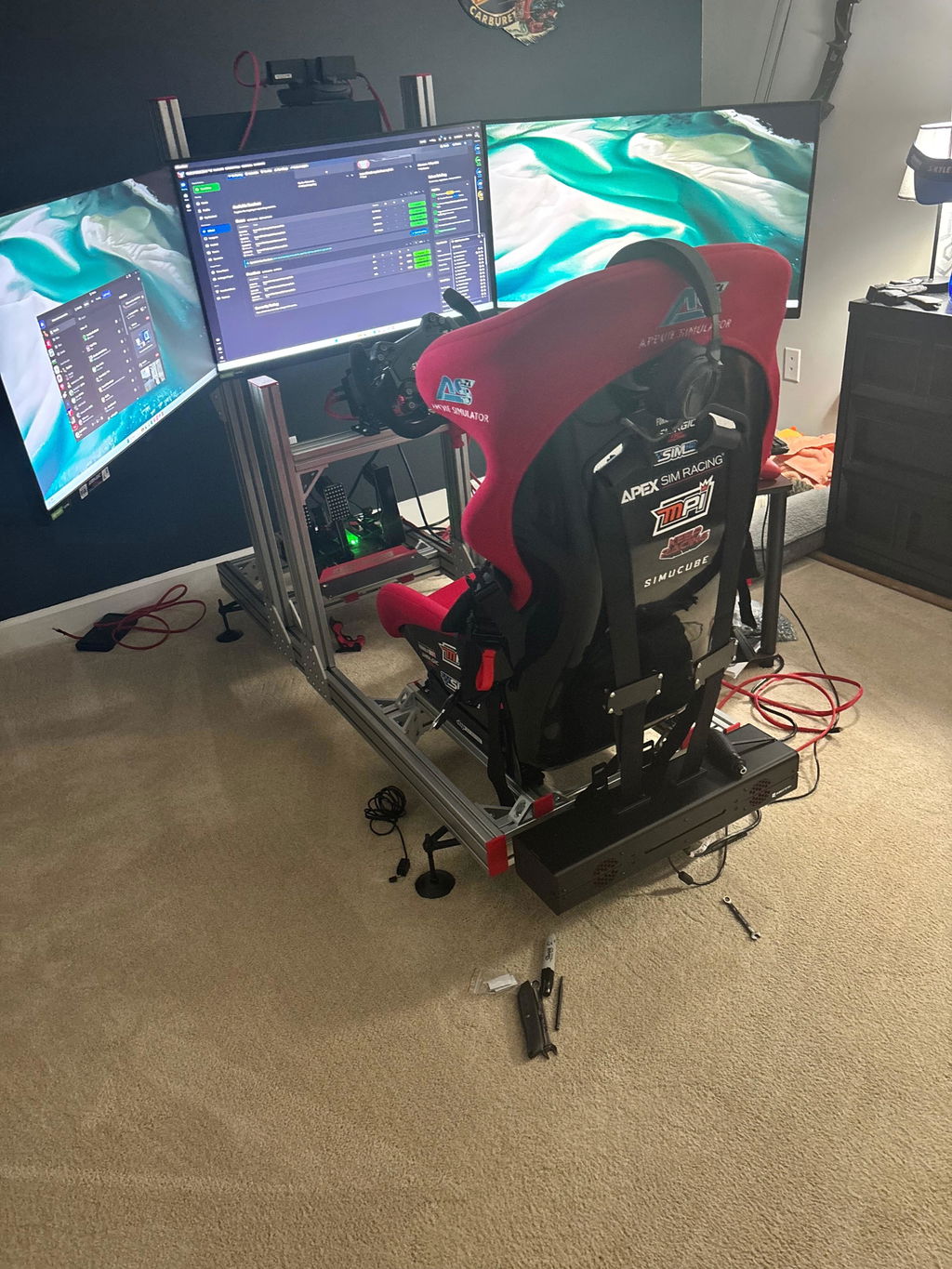
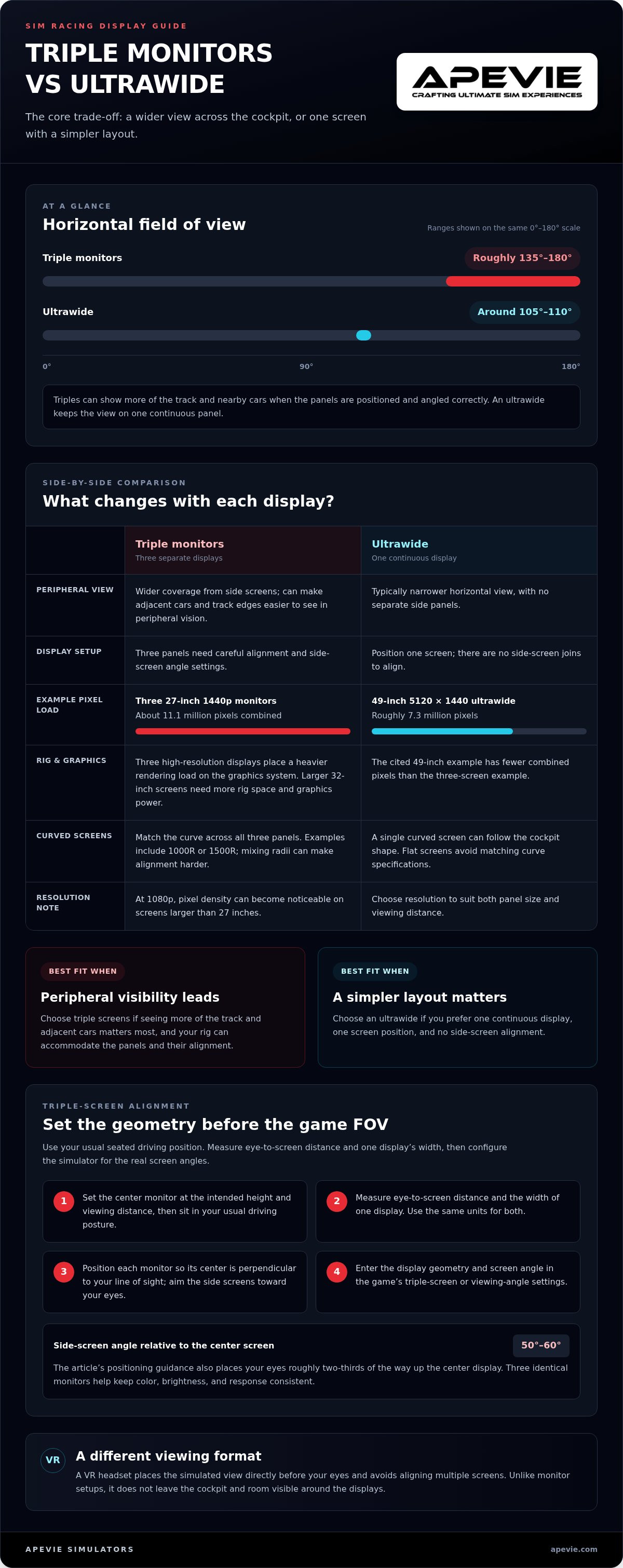
The wider-looking option isn’t automatically the better fit. A triple monitor sim racing setup can provide roughly 135 to 180 degrees of horizontal field of view when the screens are positioned and angled correctly, while an ultrawide typically offers around 105 to 110 degrees. Choose triples if broader peripheral vision matters most; choose an ultrawide if a simpler, single-screen layout better suits your rig and space.
Both options can deliver an engaging view of the track, but differ in how much of the cockpit and surrounding scene they show and in setup complexity. This guide compares the trade-offs, explains how screen distance, width, and angle affect field of view, and shows how to calculate and configure FOV in your simulator. You’ll also find practical criteria for matching a display to your priorities, from a clean installation to a wider view through corners.
Key Takeaways
- Choose triples when peripheral visibility is your priority; choose an ultrawide for a simpler display arrangement and fewer screens to align.
- Match triple monitors for consistent color, brightness, and response, then angle the side screens toward your seated position.
- Set the center screen first, measure your viewing position, and use your sim’s display settings to account for the side-screen angles.
- Factor in rendering demands as well as desk and rig space: three high-resolution displays place a heavier load on your graphics system than one ultrawide.
Benefits of triple monitors and wider field of view
A correctly positioned triple-screen rig can show more of the track than a single ultrawide. The extra horizontal view can help you spot nearby cars and corner approaches without relying solely on mirrors.
Triple-Screen Field of View
A triple monitor sim racing setup can provide roughly 135 to 180 degrees of horizontal field of view when its displays are positioned and angled correctly. The side screens extend the scene beyond the center display, making adjacent cars and track edges easier to see in peripheral vision. By comparison, a typical ultrawide provides around 105 to 110 degrees, so it shows less of the scene at the sides.
Horizontal Field of View
Horizontal field of view, or FOV, describes how much of the scene you see from left to right. In a simulator, it affects how track width, corner entry, and nearby traffic appear. Triple screens can widen the view because angled side panels extend the image beyond the center screen. An ultrawide keeps the image on one panel and typically provides a narrower horizontal view.
Positioning determines whether the extra screens contribute useful peripheral vision. Start with the center display at a comfortable distance, then angle both side screens inward by 50-60 degrees relative to the center screen. Aim each side panel toward your seated position, and place your eyes roughly two-thirds of the way up the center display. Three identical monitors help keep color, brightness, and response consistent across the view.
| Option | Typical horizontal FOV | Peripheral coverage | Setup consideration |
|---|---|---|---|
| Triple monitors | Roughly 135 to 180 degrees | Wider, using angled side screens | Align three panels |
| Ultrawide | Around 105 to 110 degrees | Single continuous panel | Position one screen |
Choose triple screens if seeing more of the track and adjacent cars is your priority; choose an ultrawide if you prefer one continuous display.
Ultrawide or triples?
Triple screens suit drivers who want a wider view across multiple displays, while an ultrawide keeps the image on one panel. VR instead places the view inside a headset. Overall cost depends on the number of monitors, resolution, mounting hardware, and the graphics performance required for your chosen display.
Triple Displays Versus Ultrawide
Three 27-inch 1440p monitors show about 11.1 million pixels combined. A 49-inch 5120×1440 ultrawide displays roughly 7.3 million, reducing the total rendering load. Triple displays give you separate panels to position around the cockpit; an ultrawide needs one display position and no side-screen alignment.
Screen size changes the practical trade-off. A 27-inch model is a common triple-screen choice, while 32-inch displays need more rig space and graphics power. At 1080p, pixel density can become noticeable on screens larger than 27 inches, so resolution should suit both panel size and viewing distance.
Ultrawide, Triple Monitors, and VR
VR differs from both monitor arrangements because a headset places the simulated view directly before your eyes. It avoids aligning multiple screens, while triple monitors leave the cockpit and room visible around the displays. An ultrawide provides a single-panel view without separate side screens or a headset.
Curved screens can follow the cockpit’s shape, but three panels should share a matching curve. For example, 1000R or 1500R screens keep curvature consistent across the display arc; mixing radii can make alignment harder. Flat screens avoid matching curve specifications, though side panels still need careful positioning.
For triple displays, compare monitor resolution and size with your graphics card’s workload before choosing. Three 1440p screens process more pixels than a 49-inch 5120×1440 ultrawide, so graphics settings may need adjustment to maintain smooth racing. VR shifts that decision toward headset comfort and how you prefer to view the cockpit.
If you’re weighing a headset against monitors, explore VR headset options alongside your display plan.
Calculating and configuring FOV
Correct FOV depends on your seated position and screen geometry, not on a preferred preset. Measure your display before changing the simulator’s camera settings.
For a triple-screen FOV calculation, note the distance from your eyes to the center screen, the width of one screen, its resolution, and the side-screen angle. Measure while seated in your usual driving position, with your eyes aligned to the center display. Moving the seat changes the viewing geometry, so recalculate after adjusting the seat or monitors.
For the center-to-edge angle of one screen, use: arctan(screen width ÷ (2 × eye distance)). The result is a half-angle; it describes the span from the screen’s center to one edge. Resolution helps match the display’s pixel dimensions to the simulator’s settings, while the measured angle accounts for physical placement.
- Set the center monitor at your intended height and viewing distance, then sit in your usual driving posture.
- Measure eye-to-screen distance and the width of one display. Use the same units for both measurements.
- Position each monitor so its center is perpendicular to your line of sight. Aim the side screens toward your eyes.
- Enter the display geometry and screen angle in the game’s triple-screen or viewing-angle settings.
Most sim racing titles let you adjust the viewing angle for angled side monitors. Apply those settings after physically aligning the panels; otherwise, the virtual track may look stretched or misaligned at the joins. Test the result on a familiar circuit, checking that corner entry and track edges appear consistent across all three displays.
The Snellen standard associates 20/20 vision with about 60 pixels per degree. Treat that as a reference for visual detail, not a substitute for measuring FOV: distance, screen width, resolution, and angle still determine the displayed view. Revisit the settings after changing monitor position or resolution.
Triple monitors compared with ultrawides
The real distinction is how each display presents the track from your seated position. One estimate places triples at about 130 degrees of view from 90 cm, compared with about 80 degrees for a 49-inch ultrawide viewed from 80 cm. Because those measurements use different viewing distances, treat them as examples, not a like-for-like benchmark.
Triple screens can show more of the scene beyond the center panel, helping you judge when a car is alongside or spot an approaching corner. An ultrawide keeps the image continuous, without panel joins across the view. That simpler layout may suit a compact rig, while triple screens require planning for screen placement and alignment around your seating position.
Distance changes the result: moving closer makes a screen occupy more of your view, while moving farther away reduces its apparent width. So compare displays from the position where you’ll actually drive, rather than relying on screen size alone. A 49-inch ultrawide viewed from farther away won’t give the same perceived coverage as one positioned close to the wheel.
- Choose triples if peripheral track detail and seeing adjacent cars are your priorities.
- Choose an ultrawide if you value a continuous image and a less involved screen arrangement.
- Compare from your rig by sitting in driving position and checking how much of the track each option places in view.
Neither format is best for every driver. If your priority is the widest practical view, measure your eye-to-screen distance and assess triple-screen coverage from that position. If a clean, unified image matters more, compare an ultrawide at the distance your cockpit allows. Let that trade-off, rather than the monitor label, guide your choice.
Apevie Simulators: Custom High-Performance racing simulator
Apevie Simulators builds custom high-performance racing simulators for drivers who want the display, controls, and cockpit planned as one system. Whether you choose triple screens or an ultrawide, a custom simulator can bring the display arrangement together with the rest of your rig instead of treating the monitor as a standalone upgrade.
For a setup that includes physical feedback, the Sigma Integrale DK2 and DK2+ Motion Systems add motion-system options, while Heusinkveld Sim Pedals Sprint provide a specific pedal choice. The right combination depends on the experience you want and how each component fits your driving setup. A focused discussion is useful when you’re planning a complete build or deciding how a display choice fits alongside motion and pedals.
Contact Apevie Simulators or visit Apevie.com to discuss your simulator build.
Build the display around the way you drive
Choose a display that fits the cockpit you’ll use, rather than one that forces compromises elsewhere. Before settling on a triple monitor sim racing setup, consider how screen position works with your seating posture, wheel, and driving style. Planning the layout helps keep your view and controls aligned as your simulator comes together.
Think of the next step as defining the whole experience: choose the view you prefer, then decide how the cockpit and equipment should support it. If you’re also considering VR, explore Pimax VR options as a distinct display approach. For a broader build discussion, contact Apevie Simulators about matching your display choice to a complete simulator. Take the time to settle on the arrangement that feels natural from the driver’s seat, then build with confidence.
Frequently Asked Questions
The Big Decision: Which Monitors Should I Buy?
Choose displays that work as a matched set with your graphics card and mounting hardware. Before selecting models, compare their physical dimensions, VESA mounting points, video connections, and supported refresh settings. A monitor connection that your graphics card cannot use alongside the other screens can create an avoidable setup problem. Check the complete configuration, not just each monitor’s specifications in isolation.
What PC do you need to run this?
Choose a PC based on the resolution and graphics settings you plan to run across all three displays. The graphics card handles most of the rendering workload, while the processor also matters in simulation titles, especially during busy races. Confirm that the card can connect to all displays at once, then test performance in your chosen game and adjust visual settings to maintain consistent frame delivery.
Which panel type is best for sim racing?
There isn’t one panel type that suits every driver, so weigh motion clarity, contrast, and how you use the screens between races. OLED can offer very fast pixel response, but static desktop content can pose a burn-in concern: Monitors Unboxed observed visible burn-in after about 6,500 hours of static use at 200 nits over two years. Consider that trade-off if the displays also show menus or desktop windows for long periods.
What hardware is needed for a triple monitor sim racing setup?
Plan for three displays, a graphics card with suitable outputs, a monitor mount, and compatible video cables. Account for cable routing between the PC and rig so wires don’t cross moving cockpit parts or become difficult to reach. Your simulator must support multi-display rendering; its display settings determine how the image is distributed across the screens.
What monitor size, resolution, refresh rate, and panel type are best for sim racing?
Choose specifications as a coordinated system rather than maximizing each one independently. A higher refresh setting only helps if the PC and game can deliver frames at a matching pace, while resolution affects the rendering workload. Before buying, compare the exact display modes supported by your graphics card and chosen simulator. Prioritize a combination that runs smoothly and keeps text, instruments, and track details comfortable to read.
How should triple monitors be positioned and angled for sim racing?
Plan the display arc around the cockpit’s physical constraints, including wheel movement, seat access, and the monitor mount’s adjustment range. Before fully tightening the mount, check that the screen edges meet cleanly and that bezels don’t obscure important details at the joins. Secure cables so steering or seat movement can’t pull them loose. Once assembled, save the simulator’s display profile for your chosen layout.
For a simulator planned around your display and driving hardware, contact Apevie Simulators about a custom high-performance racing simulator.